
The short answer
- The fastest way to get your Google review link: open your Business Profile on a computer, click Read reviews, then Get more reviews, and copy the link.
- Google generates the review QR code from the same window, but only in a computer browser, not on mobile.
- You can also build the link yourself with your Place ID: https://search.google.com/local/writereview?placeid= followed by your ID. Google doesn't document this format, so test it before you send it.
- Send the link within a day of the visit, by text or email, and never offer a discount or gift in exchange for a review. Google prohibits review incentives.
Your Google review link is in your Business Profile. On a computer, find your business on Google while signed in to the account that manages it, click Read reviews, then Get more reviews, and click the copy icon. Customers who open that link land straight on the review window with the stars ready to click.
Below are Google's steps, a backup method with your Place ID, and where to send the link once you have it. To skip the steps, use our free Google review link generator.
Free download: 13 templates to reply to online reviews (positive and negative)
Which method should you use?
| Method | Time | Best for |
|---|---|---|
| Business Profile (Get more reviews) | 1 minute | Any business that manages its own profile |
| Place ID link | 5 minutes | Agencies or people without access to the profile |
| Link generator tool | 1 minute | Getting a short link and a QR code in one place |
| Automated requests (InputKit) | Set up once | Sending the link to every customer, every day, per location |
How to get your Google review link from your Business Profile
Google's help page gives these steps for a computer browser:
- Sign in to the Google account that owns or manages your Business Profile.
- Search for your business name on Google, or go to business.google.com, to open your profile.
- Click Read reviews.
- Click Get more reviews (it sits next to the share icon).
- Click the Copy icon. Your review link is now in your clipboard.
The same window shows a QR code. Right-click it and choose Save image as to download it. Google notes that review QR codes can only be generated in a computer browser, not on a mobile device. On older dashboards, the same button may be called Ask for reviews or Share review form. It gives the same link.
Paste the link in a private browser window to test it. It should open the review box for your business, not a search page.
How to build a Google review link with your Place ID
Every business on Google Maps has a Place ID, a unique code that identifies it. You can turn it into a review link even without access to the Business Profile.
- Open Google's Place ID finder (on the Google Maps Platform Place IDs page in the sources below).
- Type your business name in the search box on the map and select it.
- Copy the Place ID that appears. It usually starts with
ChIJ. - Add it to the end of this URL:
https://search.google.com/local/writereview?placeid=YOUR-PLACE-ID - Open the full link on a computer and on a phone to check that the review window appears.
Keep two things in mind. Google doesn't document the writereview?placeid= format in its help pages, so even though it is widely used and works today, Google can change it. Google also says Place IDs can change over time, for example when a business moves. Test your link every few months, or use the Business Profile method when you can.
Get a short link and a QR code in one step
Our Google review link generator finds your business and gives you the review link. Need it on paper? The Google review QR code generator turns it into a code you can print on receipts, invoices or a sign at the counter. Both tools are free.
Where to share your Google review link
Send the link within a day of the visit, while customers still remember it.
| Channel | When | Example |
|---|---|---|
| Text message | A few hours after the visit | Dental clinic, garage, plumber |
| Same day or next day | Accounting firm, renovation contractor | |
| QR code | At the counter or on the invoice | Restaurant, retail store, hotel desk |
| Email signature | Every email | Any business that writes to clients often |
| Website button | Thank-you and contact pages | Businesses with online bookings |
A short message works best. For example: "Hi Julie, thanks for coming in today. If you have a minute, your review helps other families find us: [link]." For more wording, see our review request templates and when to ask for a review.
Rules to follow when you send your link
- No incentives. Google prohibits offering free or discounted goods or services in exchange for a review, or for changing or removing one.
- Ask everyone. Sending the link only to customers you know are happy is called review gating. Read whether review gating is allowed before you set up a filter.
- Respect consent. In Quebec, texts and emails to customers also fall under privacy and anti-spam rules. See Law 25 and review requests. This is not legal advice.
- Don't ask your staff or family. Reviews from employees and relatives count as a conflict of interest and can be removed.
Send your review link automatically
Copying a link by hand works for a few customers a week. With more than that, staff forget and the link stops going out. InputKit connects to your Google Business Profile once and creates the right review link for each location.
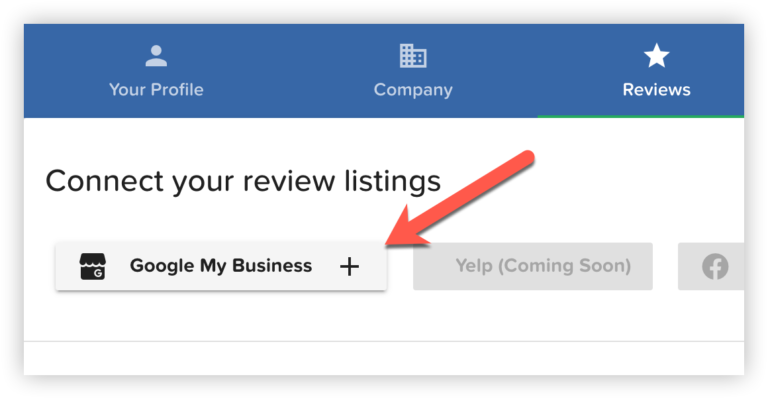
After each appointment or job, InputKit sends a short survey by text or email. Customers who had a good experience get your Google review link. Customers who didn't trigger a private alert so your team can call them back. Businesses that use InputKit get 8 times more Google reviews on average. Plomberie Roger Chayer, a Montreal plumber, got 9 times more Google reviews (read the case study).
To build a full routine around your link, read how to get more Google reviews or the complete guide to Google reviews. To see how the automation works, visit get more Google reviews with InputKit.
Book a free demo to see your review link go out after every visit.
Frequently asked questions
Where do I find my Google review link?
In your Business Profile. On a computer, search for your business on Google while signed in to the account that manages it, click Read reviews, then Get more reviews. Click the Copy icon to copy the link.
Can I get my Google review link on my phone?
Google's help page describes the steps for a computer browser, and says the review QR code can only be generated on a computer. The simplest option is to copy the link once from a computer, then save it in a note or text template on your phone.
Does my Google review link expire?
The link from your Business Profile keeps working as long as your profile is active. A link built from a Place ID can break if the Place ID changes, which Google says can happen over time, for example when a business moves. Test your link every few months.
Can I make a QR code for Google reviews?
Yes. Google generates one in the same Get more reviews window. Right-click the QR code and save the image, then print it on receipts, counter signs or invoices. You can also use a free QR code tool with your review link.
Is it allowed to send my review link only to happy customers?
Google prohibits offering incentives for reviews. Its policies also aim for honest and balanced reviews, so the safest practice is to give every customer the chance to review you. Read our guide on review gating for the details.
Sources